Every page starts private. Share it with the whole workspace, or with named people, and choose what they may do.
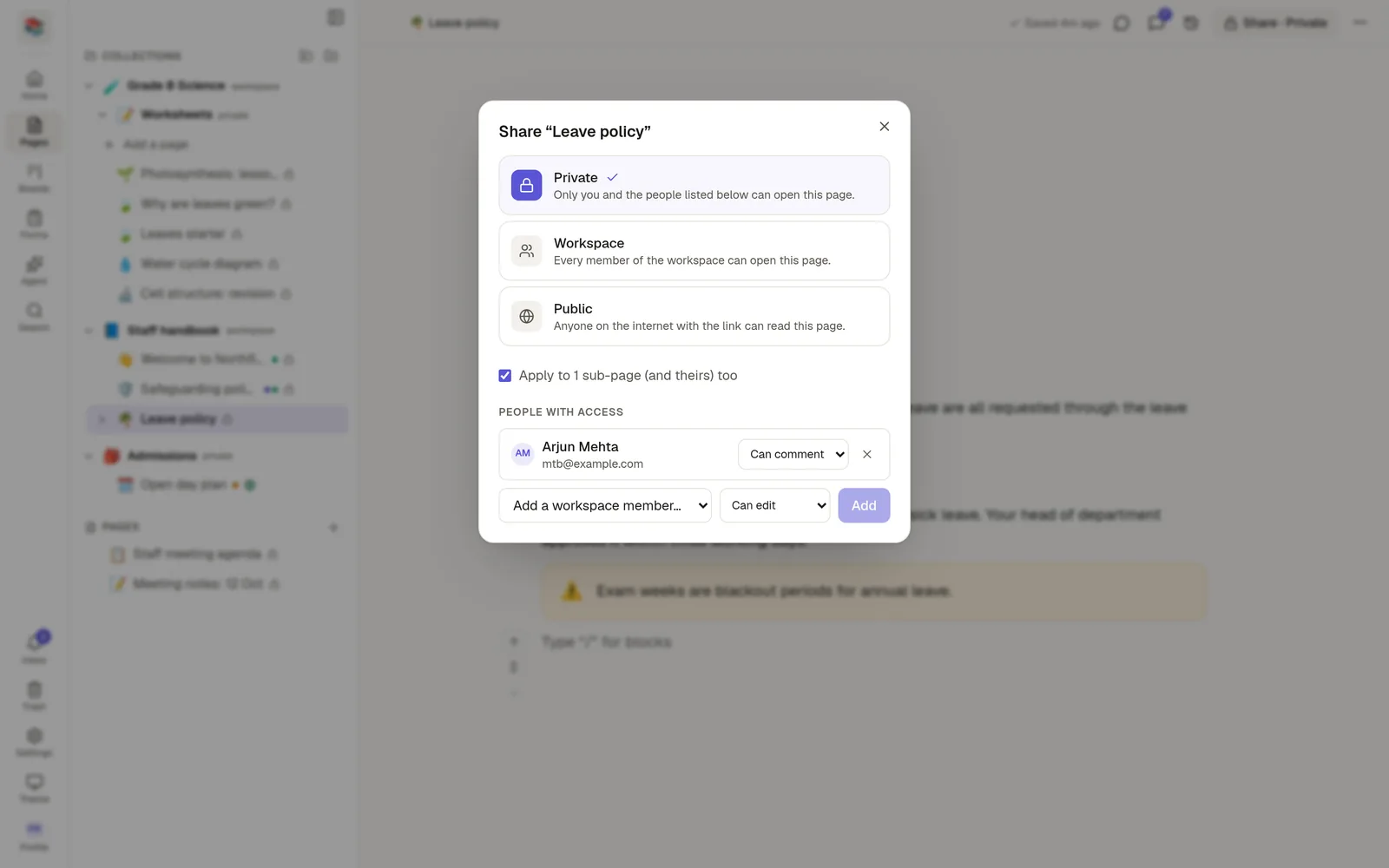
Open the Share window
Open the page and click Share in the top bar. For a collection, use Share from its ⋯ menu.
Who can open it
Only me is the default. Nobody else can open the page.
Everyone in the workspace lets every member open it.
Specific people lets you add members one by one. Type a name and choose their access.
Anyone with the link publishes the page to the web. See 🌐 Publish to the web.
What they can do
Level | They can |
|---|---|
View | Read the page. |
Comment | Read, and add comments and replies, including on selected text. |
Edit | Change the page, add sub-pages, move it and restore versions. |
A person can have a higher level than the workspace. For example, the workspace can view a page while one colleague can edit it.
Sharing is inherited downwards
Sharing a collection shares every page inside it, sub-collections included. A page inside a shared collection, and its sub-pages, follow the same sharing. You can still share a single sub-page with more people on its own.
Who can change sharing
Only the page's author, or a workspace owner or admin, can change sharing or publish a page. Being able to edit a page is not enough.
Deleting is separate
The levels above never include deleting. Only the author or a workspace admin can move a page to the trash. See 🗃️ Archive and trash.
Freeze a page with a lock
When a page must not change, lock it. A locked page is frozen for everyone, its author included, whatever their level, until its creator or a workspace admin unlocks it. People who may comment still can, and sharing and publishing keep working. See 🔒 Lock a page, form or collection.
Mention a colleague with @ and NoteMaker checks that they can open the page. If they cannot, it offers to share the page with them first.