The Build tab is a canvas. Add fields, arrange them in rows and set what each one asks for. There is no save button: changes save as you make them.
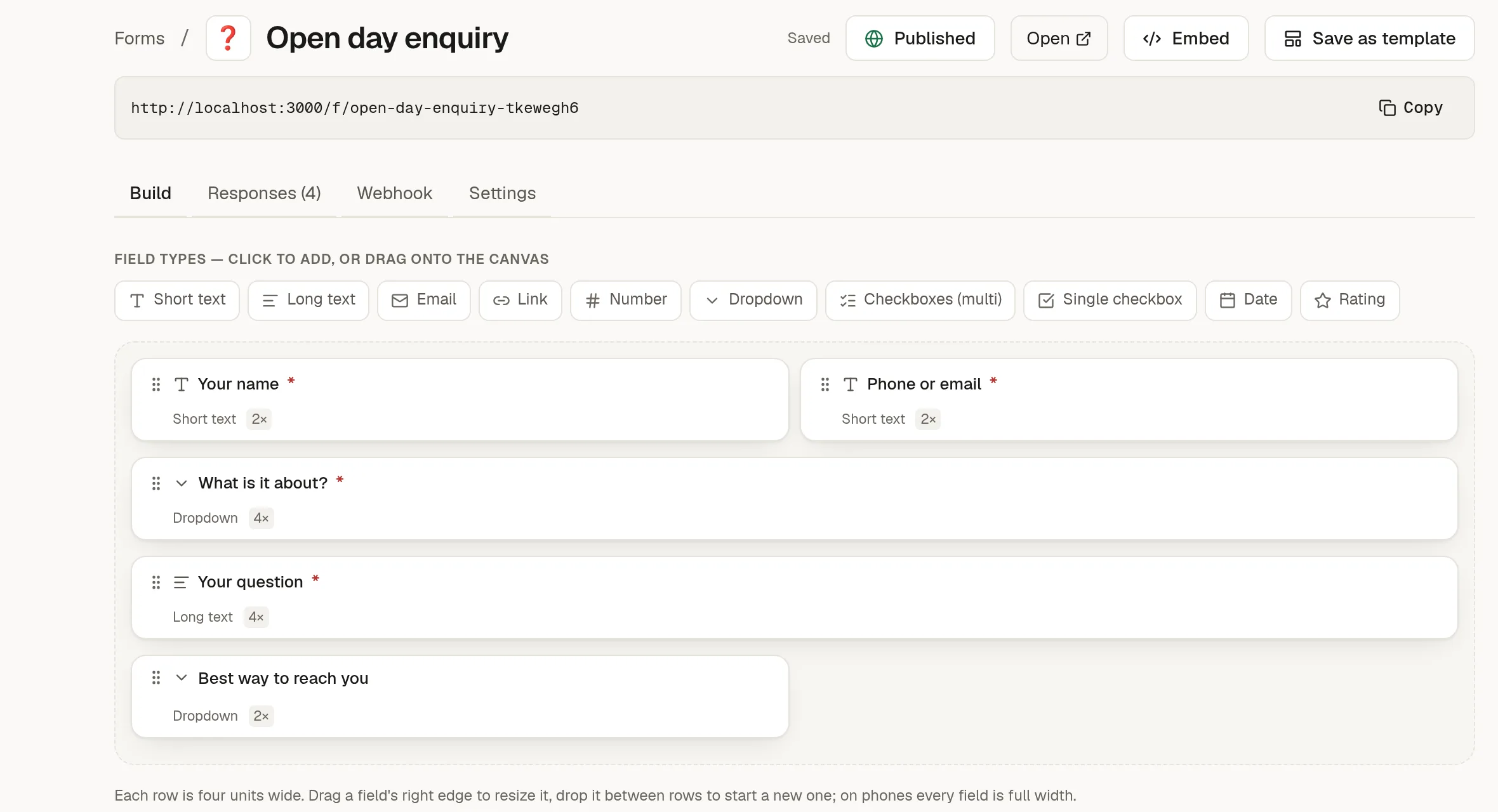
Add fields
Click a field type to add it at the end, or drag it onto the canvas where you want it.
Short text, Long text
Email, Link, Number
Dropdown, Checkboxes (several answers), Single checkbox
Date, Rating
File upload, for a screenshot, a document or a PDF
Arrange them
Each row is four units wide, and each field takes one to four of them.
Drag a field by its handle to move it. Drop it on the left or right half of another field to place it beside that one.
Drop it between rows to start a new row.
Drag a field's right edge to make it wider or narrower.
On a phone, and in a narrow embed, every field is full width.
Set up a field
Click a field to open its details: label, type, width, whether it starts a new row, whether it is required, placeholder, help text, and the options for a dropdown or checkboxes. You can also duplicate, delete or move it from there.
Placeholder and help text are shown to the people filling in the form. Do not use them for notes to yourself.
Ask for a file
A File upload field takes one file. In its details, set:
Largest file, from 1 to 25 MB. It can never be above the limit your administrator set for uploads.
Accepted files: Images (PNG, JPG, GIF, WebP, HEIC), Documents (PDF, Word, Excel, PowerPoint, text, CSV) or Common files (images, documents, ZIP, audio and video).
Want more than one file? Add more File upload fields, for example "Screenshot 1" and "Screenshot 2". One file per field keeps each answer easy to find, and each field can go to its own place on a card (see 🔗 Send responses to a sheet or a board).
The visitor picks or drags in a file and it uploads at once. The form tells them straight away if the file is the wrong kind or too large, and the Submit button waits while a file is still uploading.
Uploaded files are private. They never get a public address, and only members of your workspace can open them, from the Responses tab. They count against your workspace's storage. A file that is never submitted is removed after 24 hours. Files are checked by type but not scanned for viruses, so treat an attachment from a stranger like any other download.
Lock the form
Once a form is final, click Lock in its header. A locked form cannot be redesigned: the fields, settings, publishing and the webhook are frozen, and the Build tab becomes read-only. It keeps collecting responses. Click Unlock to change it again. Only the form's author and workspace admins can lock and unlock. See 🔒 Lock a page, form or collection.