A card is a page, so everything you can do on a page works on a card. The board is where you see all cards at once and move them.
Add a card
Click + New at the bottom of a column. The card starts in that column's state. If the board has a card outline, the new card starts with it.
Move a card
Drag a card to another column, or up and down inside a column to change its order.
Or open the ⋯ menu on the card and choose Move to…. This is easier on a phone or with a keyboard.
You need permission to edit the card. If a move is not allowed, the card jumps back and a message says why. Everyone who has the board open sees changes as they happen.
Open a card
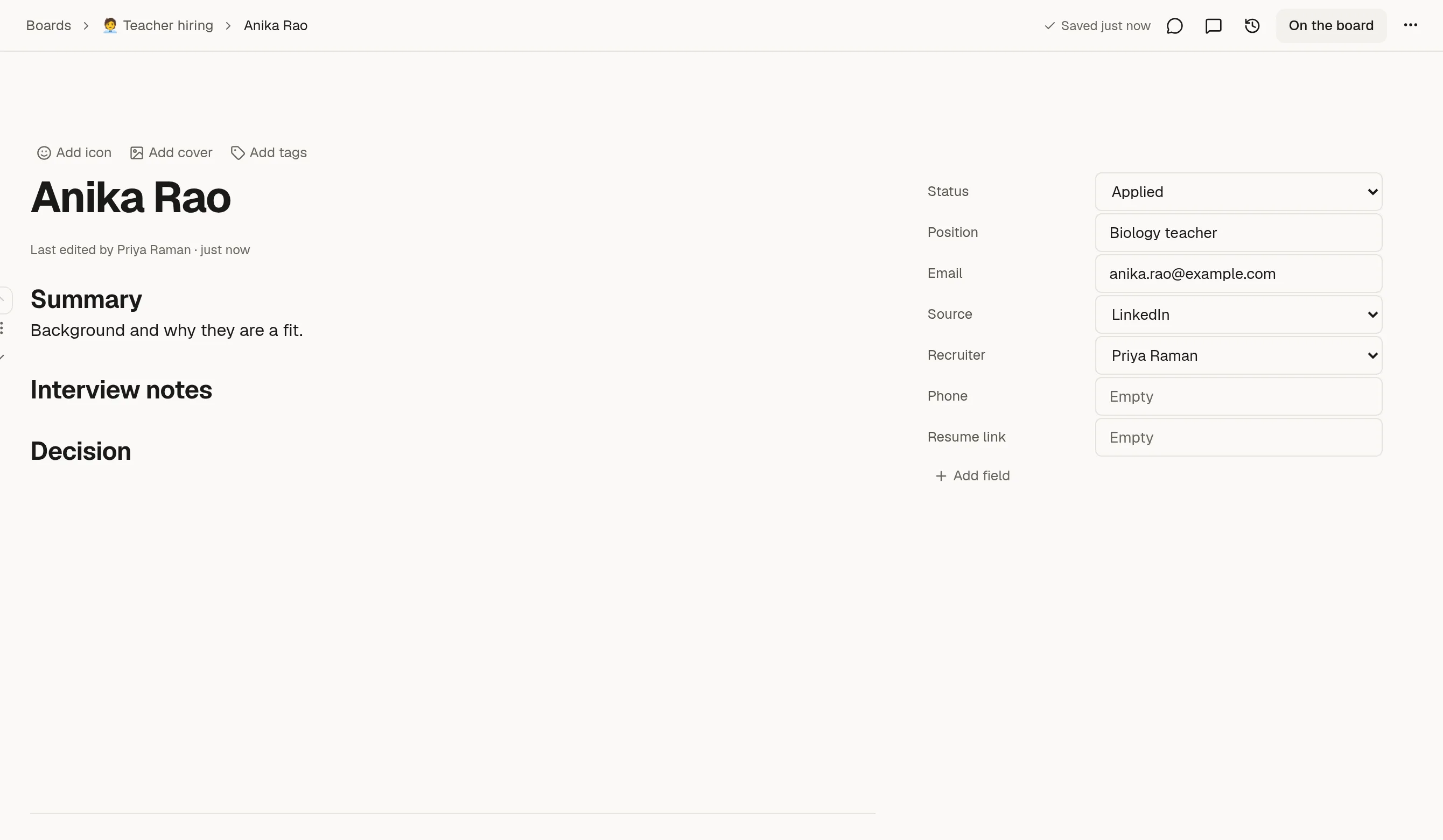
Click the card's title. It opens as a page. Write notes in the body, comment, and use the history like on any page. The fields sit on the right; Status is the card's column and cannot be removed.
A card shows up to four fields on the board. Choose which ones in 🎛️ Board settings: states and fields.
Attach a file
Add a File field to the board and every card can hold a file, such as a screenshot or a contract. Open the card, click Upload a file in that field, and choose it. Click the file's name to download it, Replace to swap it or the x to remove it. A card with a file shows a paperclip on the board.
A card holds one file per File field. For two files, add two File fields.
Cards made from a form get their file automatically when the form's upload field is matched to a File field. See 🔗 Send responses to a sheet or a board and 🏷️ Fields.
Lock a card
To freeze a card, for example one that is approved and must stay as written, lock it from its menu or press Ctrl+Shift+L with the card open (Cmd on a Mac). A locked card shows a lock icon, cannot be edited and cannot be dragged to another column. Unlock it from the same menu, or with Ctrl+Shift+U. A whole board cannot be locked, only its cards. See 🔒 Lock a page, form or collection.
Archive a finished card
Open the card's ⋯ menu and choose Archive. It leaves the board but is not deleted. Click Archived cards at the top of the board to look at them or bring one back. An archived card is read-only.
Hide a column
Use the eye icon on a column's header to hide it. This only changes your own view, in this browser.
Find a card
Search with Ctrl+K (Cmd+K on a Mac). Cards are listed with the label Card.
If a card came from a form, archiving it also marks that response as Handled.