The Responses tab lists every submission with its answers. Use it to see what came in and to keep track of what you have dealt with.
Read responses
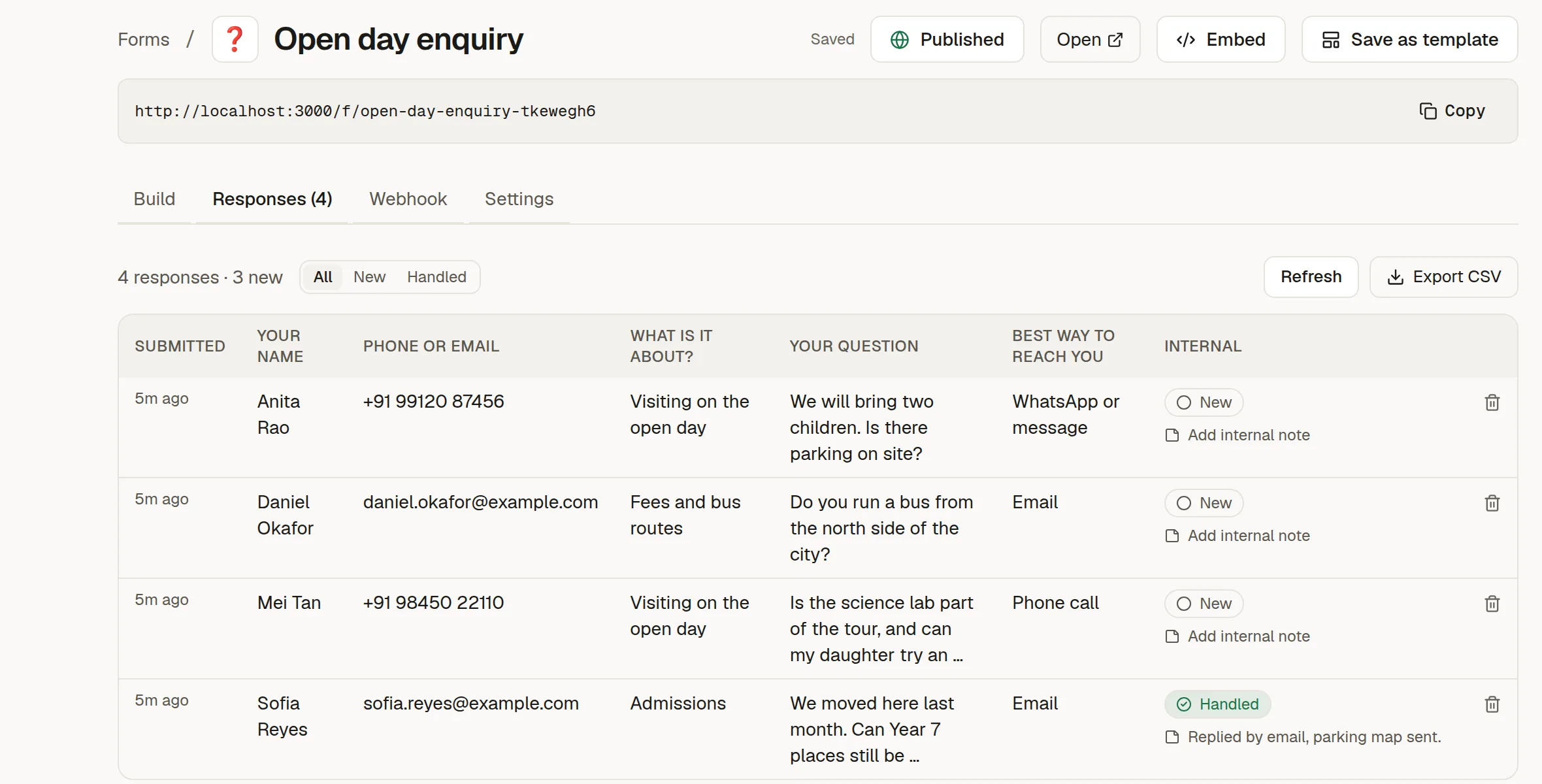
Each row is one submission: when it arrived, then one column per field. The tab name shows how many responses there are. Click Refresh to load new ones.
Open attached files
If the form has a File upload field, the answer is the file's name and size. Click it to download the file. Only members of the workspace can open it, and the file always downloads rather than opening in the browser. Each download is saved to the 🛡️ Audit log.
Treat an attachment from a stranger like any other download: files are checked by type, but not scanned for viruses.
Mark them handled
The Internal column is for your team only.
Click New to mark a response Handled, and again to put it back.
Click Add internal note to write a private note, for example "Replied by email".
Filter the list with All, New or Handled.
The respondent never sees the handled mark or the note. They are also left out of the webhook and the notification email.
Export
Click Export CSV to download the responses for a spreadsheet. The file includes whether each one is handled and its note. A file answer appears as its name and size. The file itself is not in the CSV.
Delete a response
Use the trash icon at the end of the row. Only the form's author and workspace owners and admins can delete responses. Deleting a response deletes the file it carried.
Who can see them
Every member of the workspace can read responses and mark them handled. Editing and publishing the form is limited to its author and workspace owners and admins.