NoteMaker is one workspace for your team's pages, forms, boards and AI agents. This page shows you where everything is.
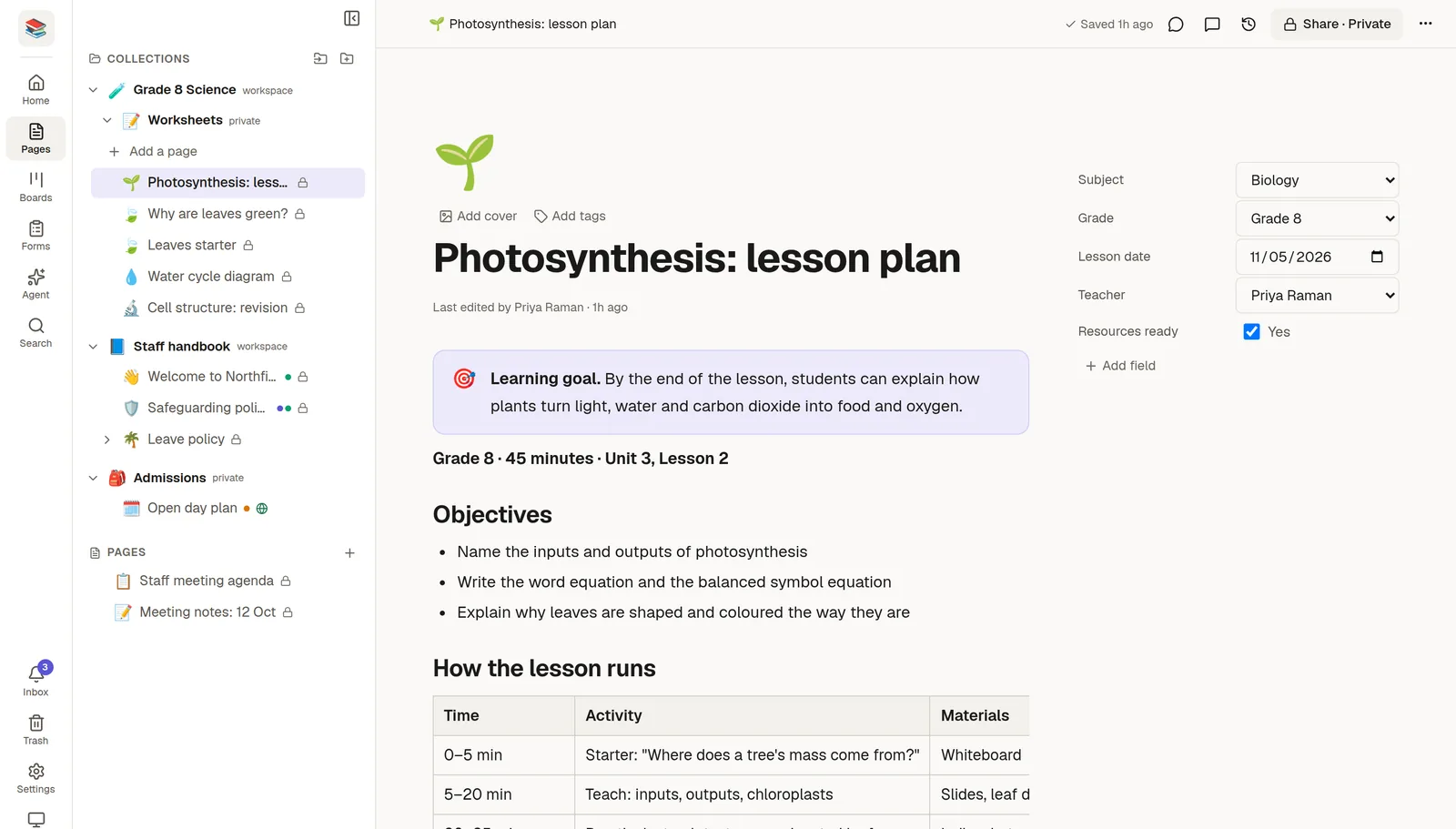
The three parts of the screen
The icon rail is the narrow strip on the far left. It takes you to the main areas of the workspace:
Home shows the pages you open most, plus a button for 📅 Daily log.
Pages opens your collections and pages.
Boards holds your boards, when your plan includes them.
Forms is where you build forms and read the answers.
Agent opens Agent Mode, the AI chat that works inside your workspace.
Search finds anything in the workspace, and runs commands.
At the bottom of the rail are your Inbox, the Trash, Settings, the light and dark Theme switch and your Profile.
The side panel sits next to the rail. For Pages it is the tree of your collections and pages. Settings, Agent and Profile have their own panels. Drag its right edge to make it wider, or use the small arrow at its top to hide it.
The page is the large area on the right, where you read and write.
On a phone
On a small screen the rail turns into a bar along the bottom with the places you use most, and a bar along the top with search, your inbox and your account. See 📱 Use NoteMaker on your phone.
Pages, collections and fields
A page is a document. Pages can hold sub-pages, and you can group them in collections, like folders. A page can also carry fields, such as a status, a due date or an owner, which you see in a panel beside the text. See 🗂️ Collections and sub-pages.
Where to go next
🏠 Create your account and workspace if you have not yet.
Everything you type is saved as you go. There is no Save button.
Tip: press Ctrl+K (Cmd+K on a Mac) at any time to search the whole workspace, or to jump anywhere and run commands without the mouse. See 🔎 Find anything with search.