Type @ in a page, choose an agent, write what you need and press Enter. The agent works in the background and its answer replaces your request on the page.
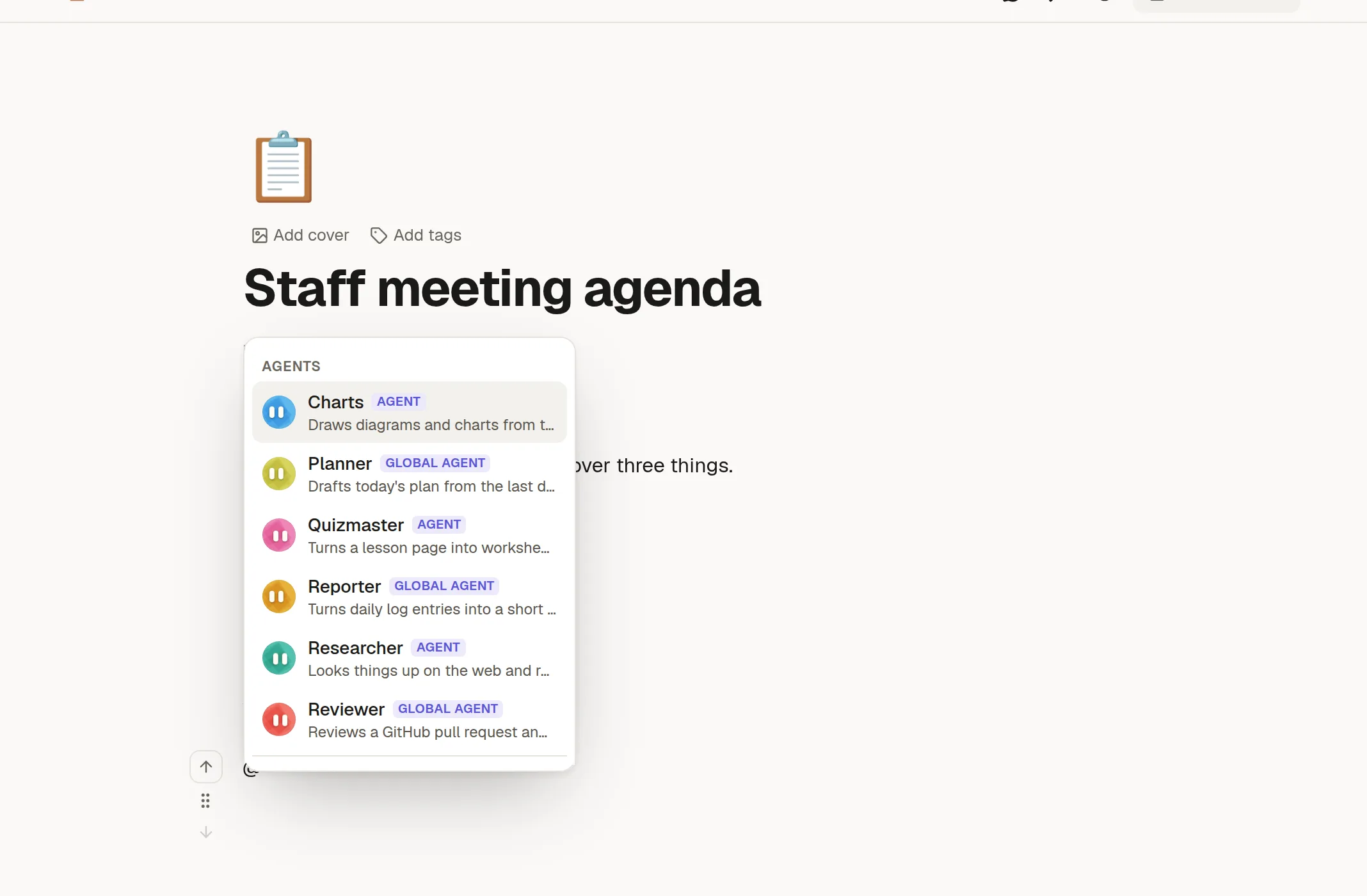
Ask
Type @ where you want the answer.
Pick an agent. Agents from your workspace are listed first, and ones from your administrator have a Global agent badge.
Write your request after the agent's name.
Press Enter at the end of the paragraph.
The request turns into a block that shows what the agent is doing. A "… is working" note appears in the page's top bar, so everyone on the page can see it.
What you get
When it finishes, the block is replaced by the answer. If it fails, the block stays with Retry and a way to dismiss it. You can Stop a run.
What it can do
The agent works with your access, never more. Because nobody can approve steps while it works in the background, it only runs steps that need no approval: reading, and ordinary writing if the agent is set up to edit. It cannot publish, delete or notify anyone, and it will not mention people.
It also cannot change a 🔒 Lock a page, form or collection page. On a locked page the request fails and says the page is locked. Unlock the page and ask again, or ask in an Agent Mode chat, where the agent can ask you to lift the lock.
See what it did
Click Steps on the block, or Agent activity in the page menu. The panel lists what the agent looked at and changed, in plain sentences, with each try if you retried. People who cannot open a page the agent used see only "a page you can't open". Cost is never shown.